
Less file.
More useful.
Compress, convert and edit files from their right-click menu. A few useful changes, right where your files already are.
Convert / How it works
A right-click
away.
The tools appear beside the file you want to change.
- Right-click a file in Finder.
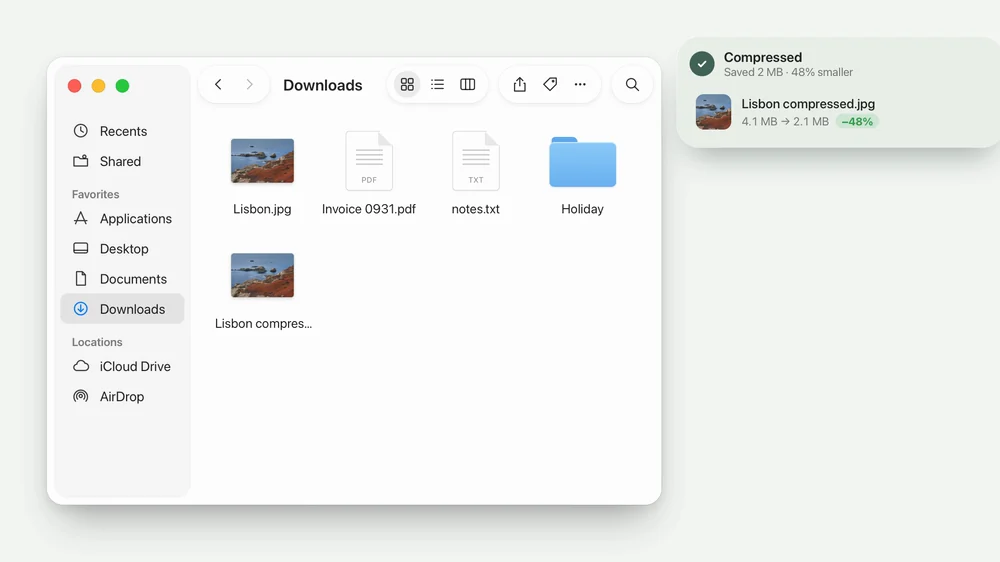
- Choose Convert, then Compress.
- Watch it get smaller.
- A new copy appears beside the original.
A few useful details.
Small decisions that make Convert feel easy to live with.
Make it smaller
Compress images, PDFs, video and audio. Pick a balance of size and quality, or prioritize one over the other.
Make it something else
Convert between common formats, resize images and video, remove an image background, or combine images and PDFs.
Keep the original
Results are saved beside the original by default. File processing happens on your Mac, with progress shown as each item finishes.
Getting started.
No special permissions. Open Convert once and turn on its Finder extension, then right-click any photo, video, song or PDF and choose Convert.
Made for Apple silicon Macs running macOS 15 or later.
How do I find it?
Right-click a file in Finder and choose Convert. If it isn’t there, open Convert and turn on its Finder extension.
Are my files uploaded?
No. Processing happens locally on your Mac.
Will it overwrite my originals?
By default, results are saved as new files beside the originals. Replacing originals is a separate, optional setting.


The little family.
Dock, Drop, Awake, Convert and Sort in one download.
Five separate apps. Use the ones you want.