
A little
longer.
Keep your Mac awake while something finishes. Set a timer, wait for an app, or stay awake while plugged in. Then let normal sleep take over.
Awake / How it works
Time to finish.
A download, an export, a long piece of work. Give it the time it needs.
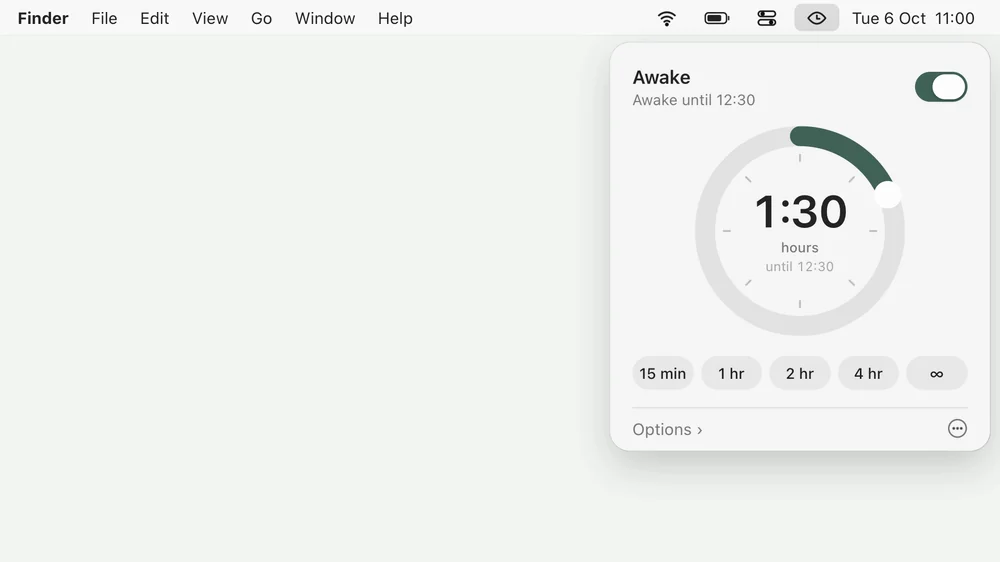
- Click Awake in the menu bar.
- Turn the dial to how long you need.
- Your Mac stays awake, then sleeps as usual.
Or use the keyboard
Three keys.
Awake, or not.
Turn Awake on or off from any app, without opening a thing.
A few useful details.
Small decisions that make Awake feel easy to live with.
Set the time, then leave it
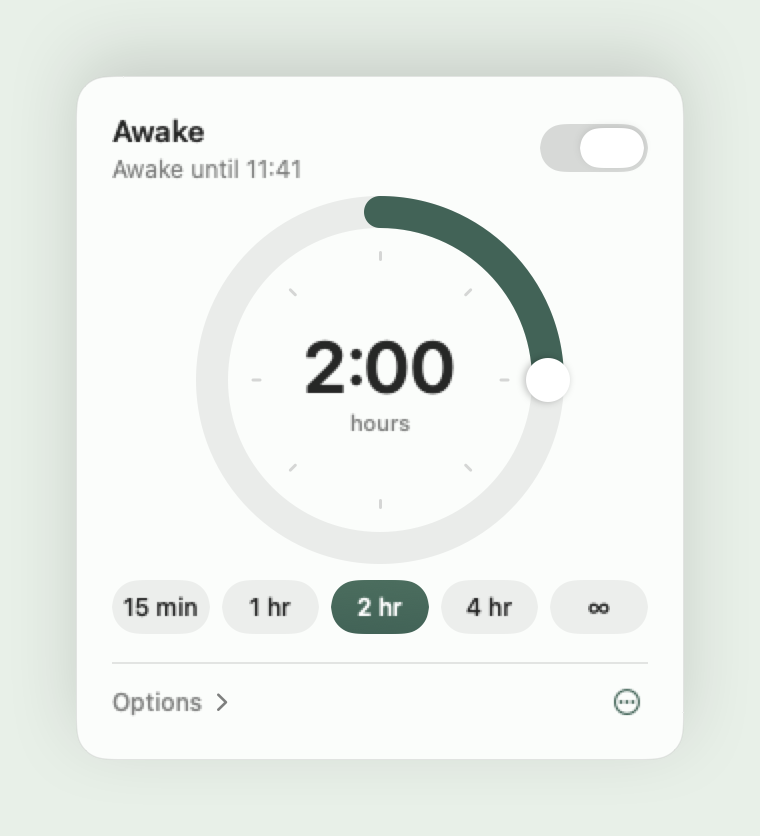
Turn the menu-bar dial, pick a preset, or choose a time of day. You can also keep your Mac awake until you turn Awake off.
Follow the work
Stay awake while a chosen app is open or while your Mac is connected to power. Awake waits when the condition is not met.
Let the screen rest
Keep the display on, or let it sleep while your Mac continues working. Awake switches off automatically when battery charge drops below 10%.
Getting started.
No special permissions. Click the menu-bar symbol to choose a mode. Press Option–Command–Z, or right-click the symbol, to turn Awake on or off.
Made for Apple silicon Macs running macOS 15 or later.
Can my display sleep while the Mac stays awake?
Yes. Turn off “Keep display awake” to let the display rest while the Mac keeps working.
What happens when the timer ends?
Awake releases its keep-awake request. Your normal macOS sleep settings take over again.
What if the battery gets low?
On battery, Awake stops automatically below 10% charge.


The little family.
Dock, Drop, Awake, Convert and Sort in one download.
Five separate apps. Use the ones you want.